You'll end up with a private server, your own bot inside it, and the bot's token saved safely.
- ⏱ About 15 minutes
- 💻 Easiest on a computer
- 🔑 A password manager for one secret
Create the server
- In Discord, click + at the bottom of the server list.
- Create My Own → For me and my friends.
- Type a name, then click Create.
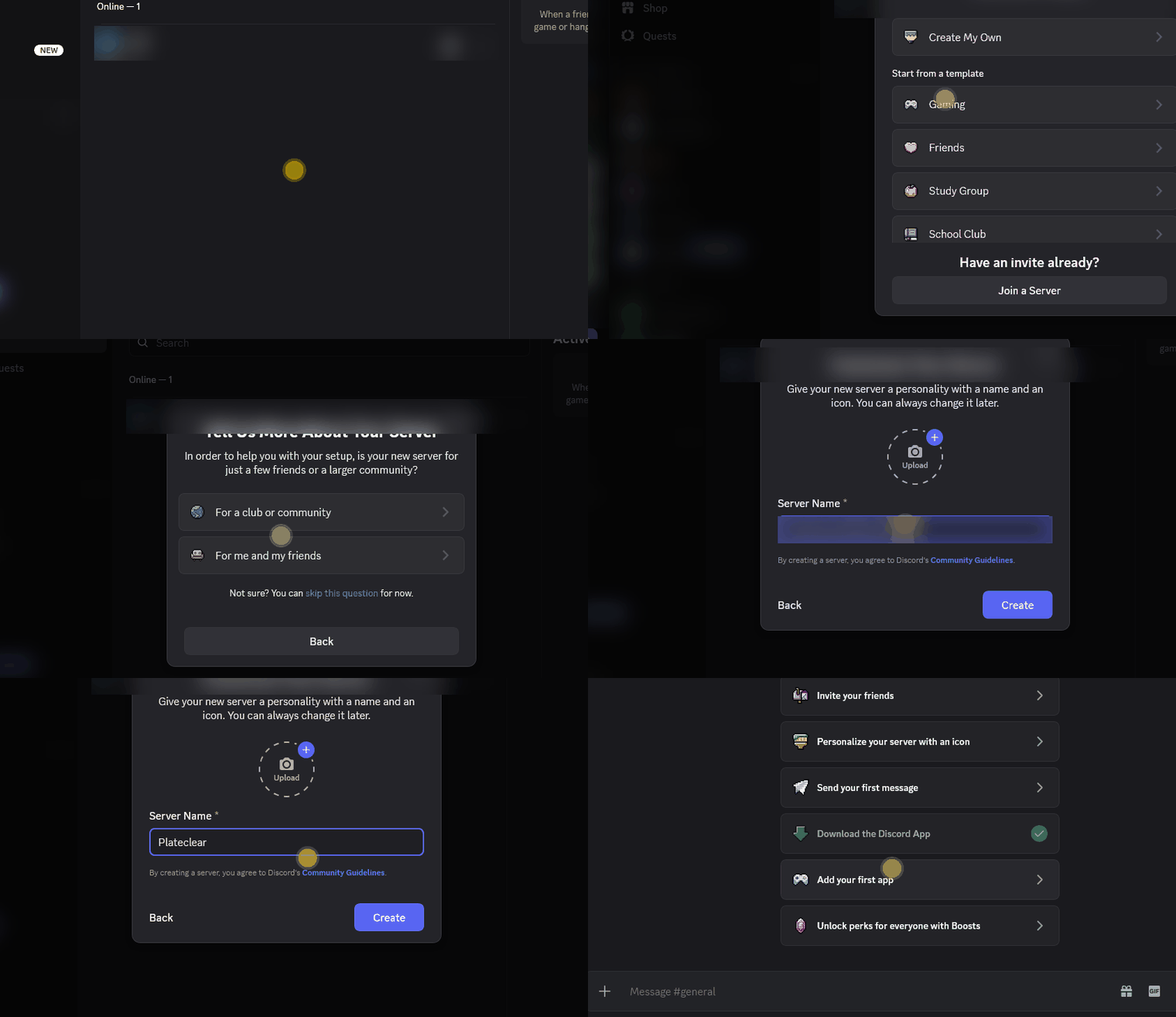
Your new server is open, with a
#generalchannel.
Turn on Developer Mode and copy two IDs
- User Settings (gear, bottom left) → type Developer in the search box → Developer → Developer Mode on.
- Right-click your server icon → Copy Server Info → Copy Server ID. Paste it in your notes.
- Show the member list (people icon, top right) → right-click your name → Copy User ID. Paste it too.
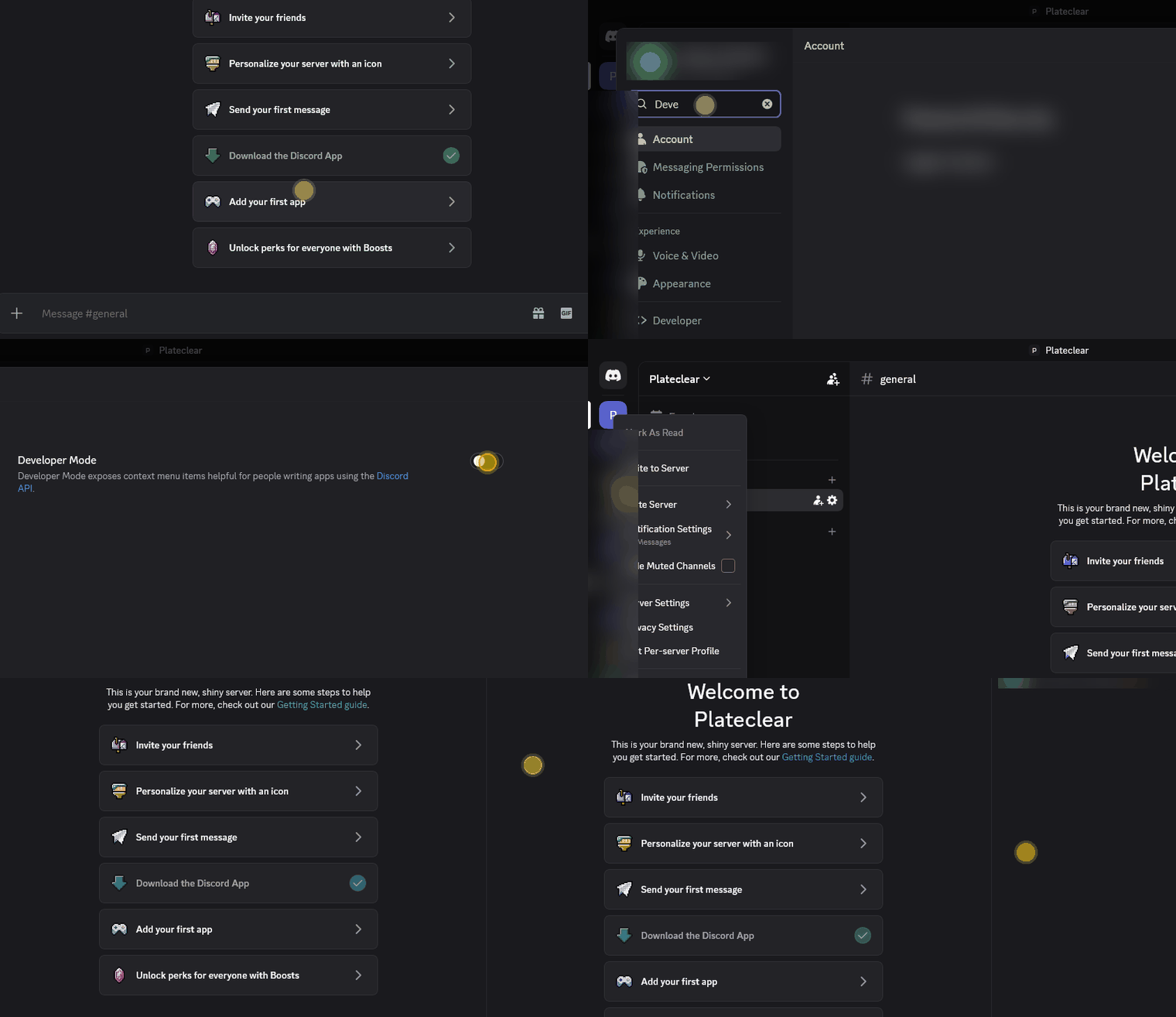
Two long numbers (18–19 digits) in your notes.
Create the bot
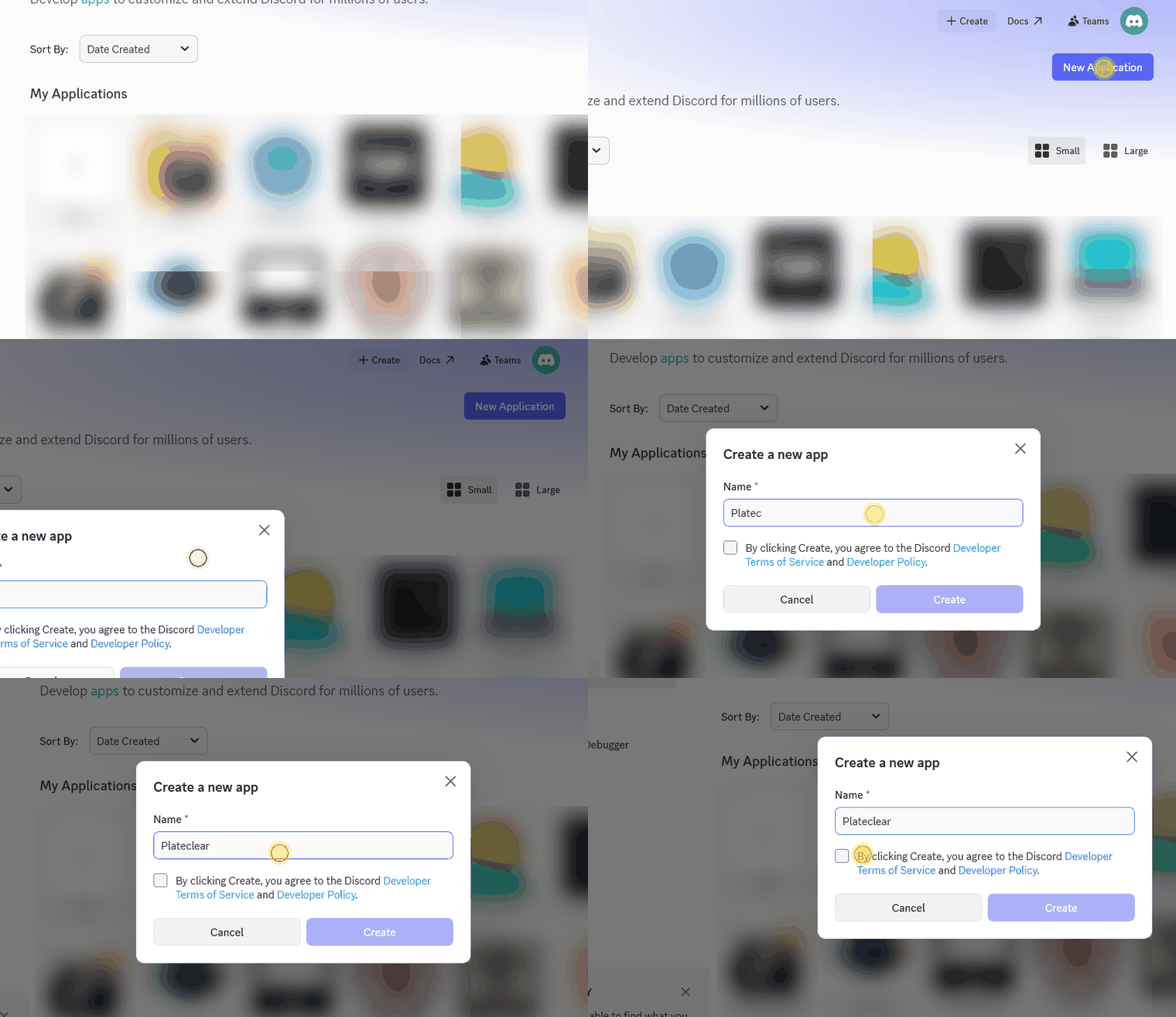
Open the Developer Portal → New Application → name it → tick the terms box → Create. If Discord asks "Are you human?", tick the box.
Bot (left menu) → turn on Message Content Intent → Save Changes.
Installation → Install Link: None → Save Changes.
Bot → turn off Public Bot → Save Changes.
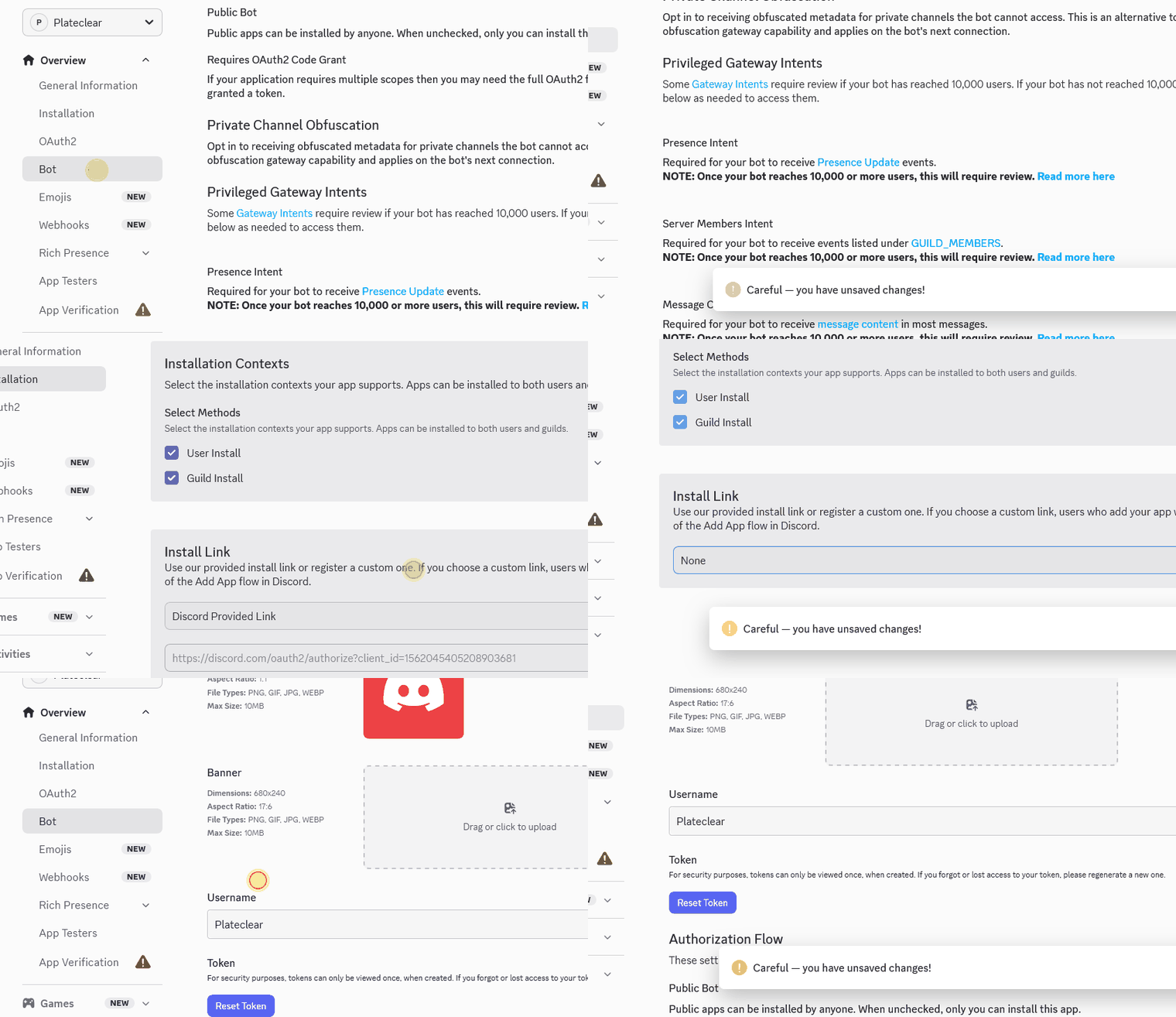
"Bot successfully updated!" with Public Bot off.
Step 3 matters: Discord refuses to make a bot private while it still has an install link.
Copy the token
- On the Bot page, click Reset Token → Yes, do it!
- Enter your Discord password (or a 2FA code) if asked.
- Copy the token straight into your password manager. (Keeping it in a file? Run
chmod 600on it.)
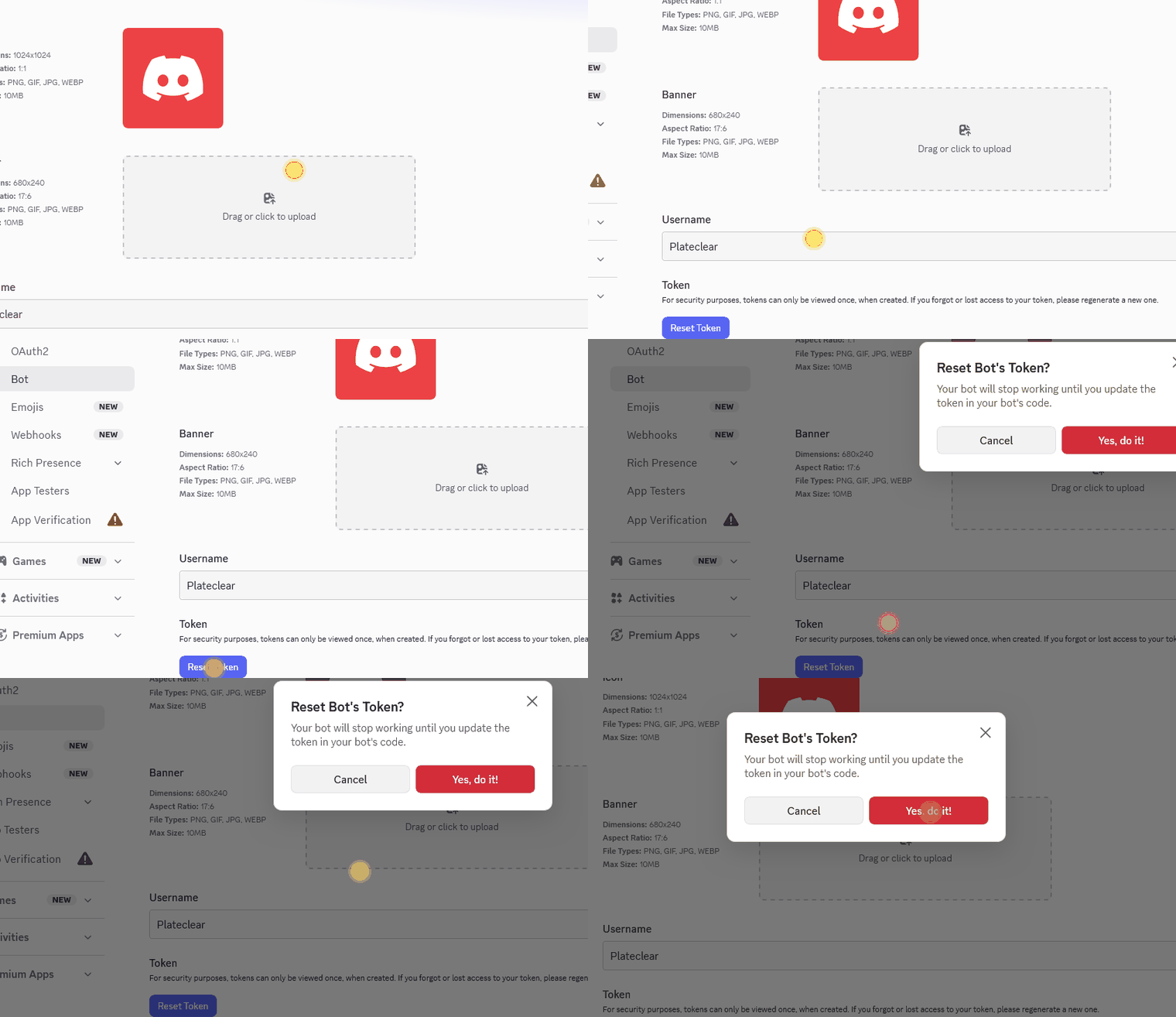
"A new token was generated!" and the token is saved somewhere only you can open.
It's the bot's password. Never paste it into a chat, screenshot or shared file. Leaked? Reset it again.
Invite the bot
- OAuth2 → OAuth2 URL Generator → Scopes: tick bot.
- Bot Permissions: View Channels, Send Messages, Send Messages in Threads, Read Message History, Attach Files, Add Reactions. (Using the layout kit? Add Manage Roles and Manage Channels.)
- Copy the Generated URL at the bottom, open it → pick your server → Continue → Authorize.
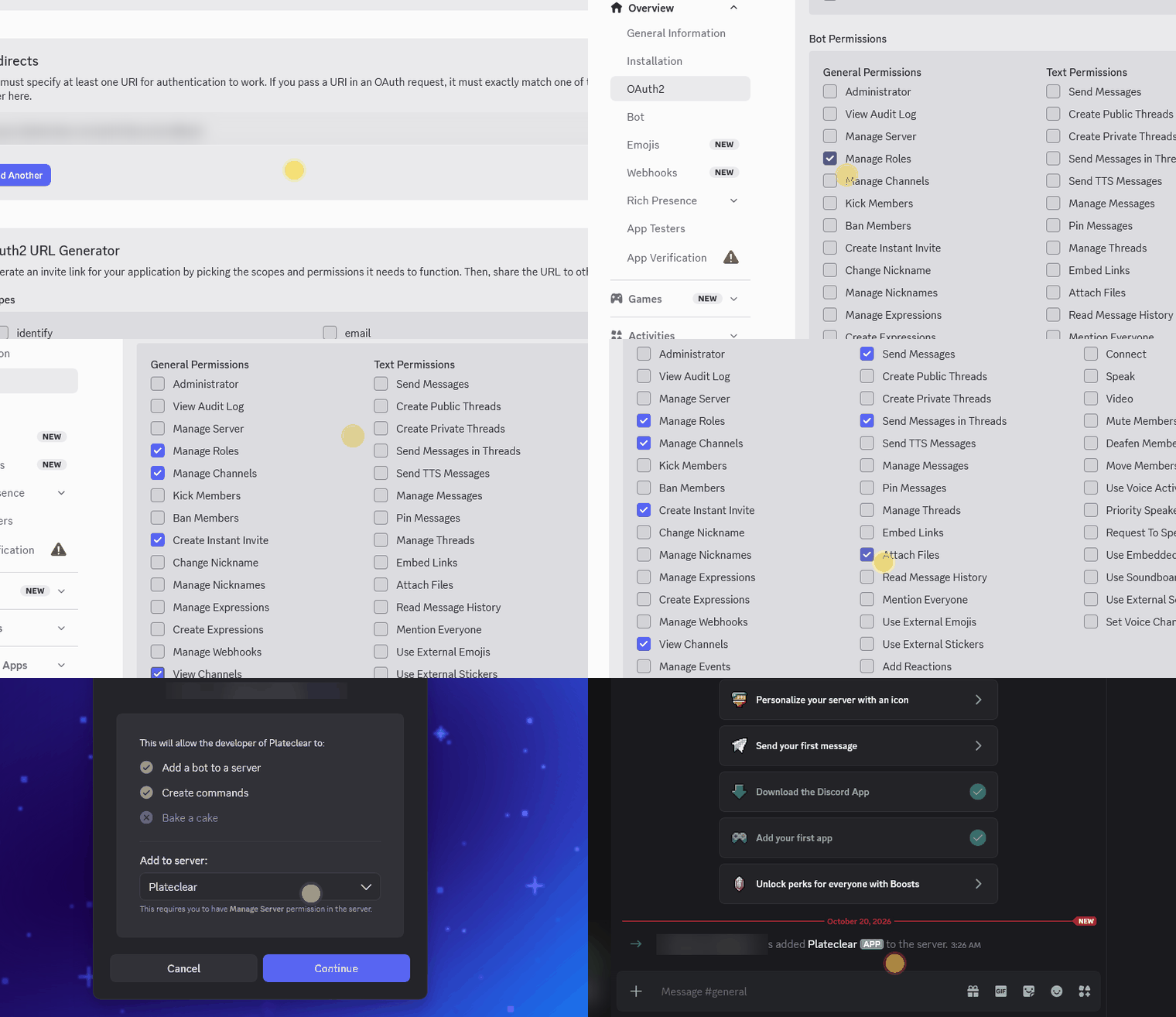
Your channel shows "… has added your bot to the server."
Make a Member role
- Server name → Server Settings → Roles → Create Role.
- Name it
Member, pick a color → Save Changes. - Manage Members → Add Members → tick yourself → Add.
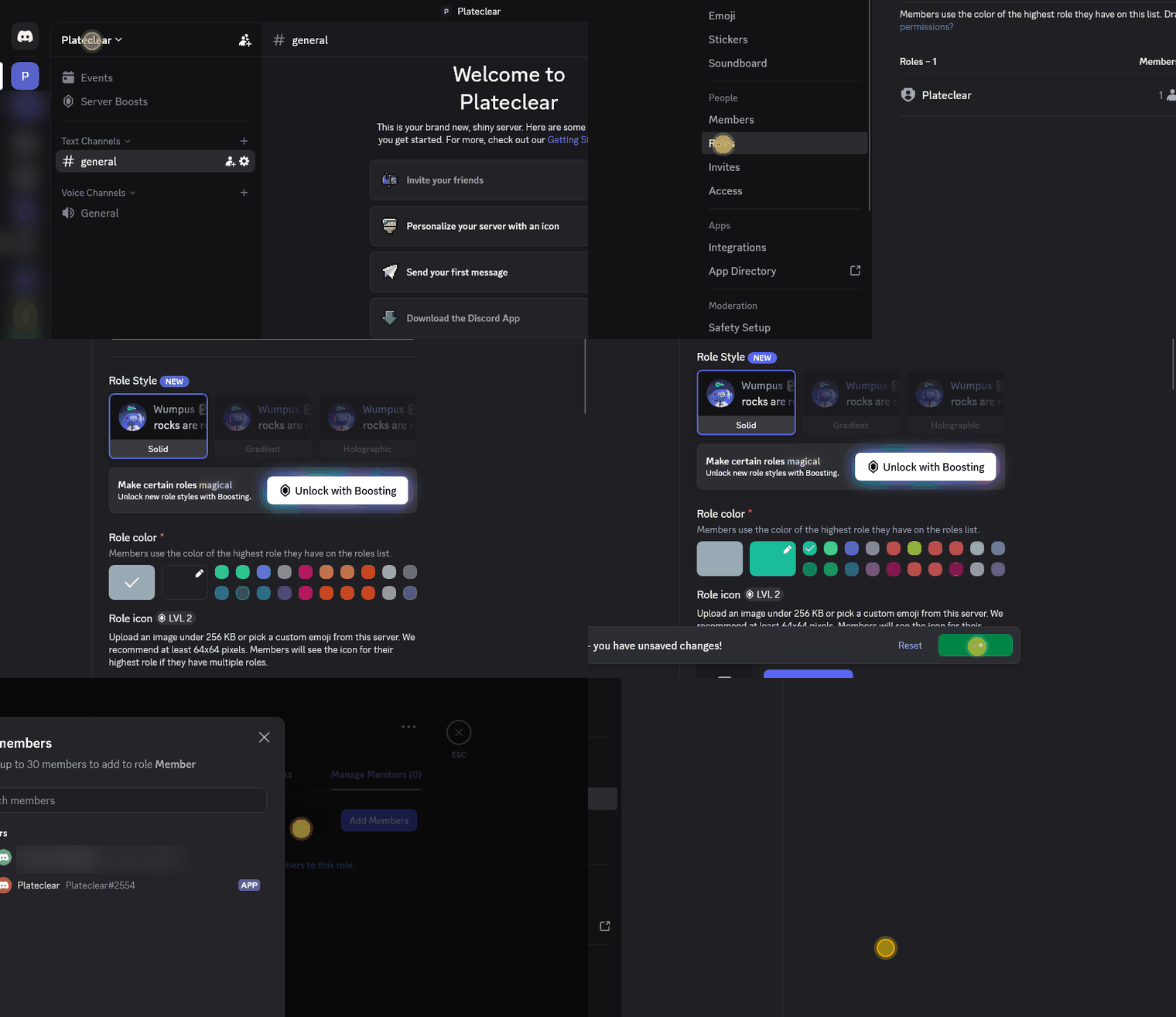
In the role list, your bot's role is above
Member, andMemberhas 1 member. If not, drag the bot's role above it.
Add a private channel
- Right-click an empty part of the channel list → Create Category →
Members→ Private Category on → Next. - Tick the
Memberrole and your bot → Create Category. - Click + next to
Members→ name itassistant→ Create Channel.
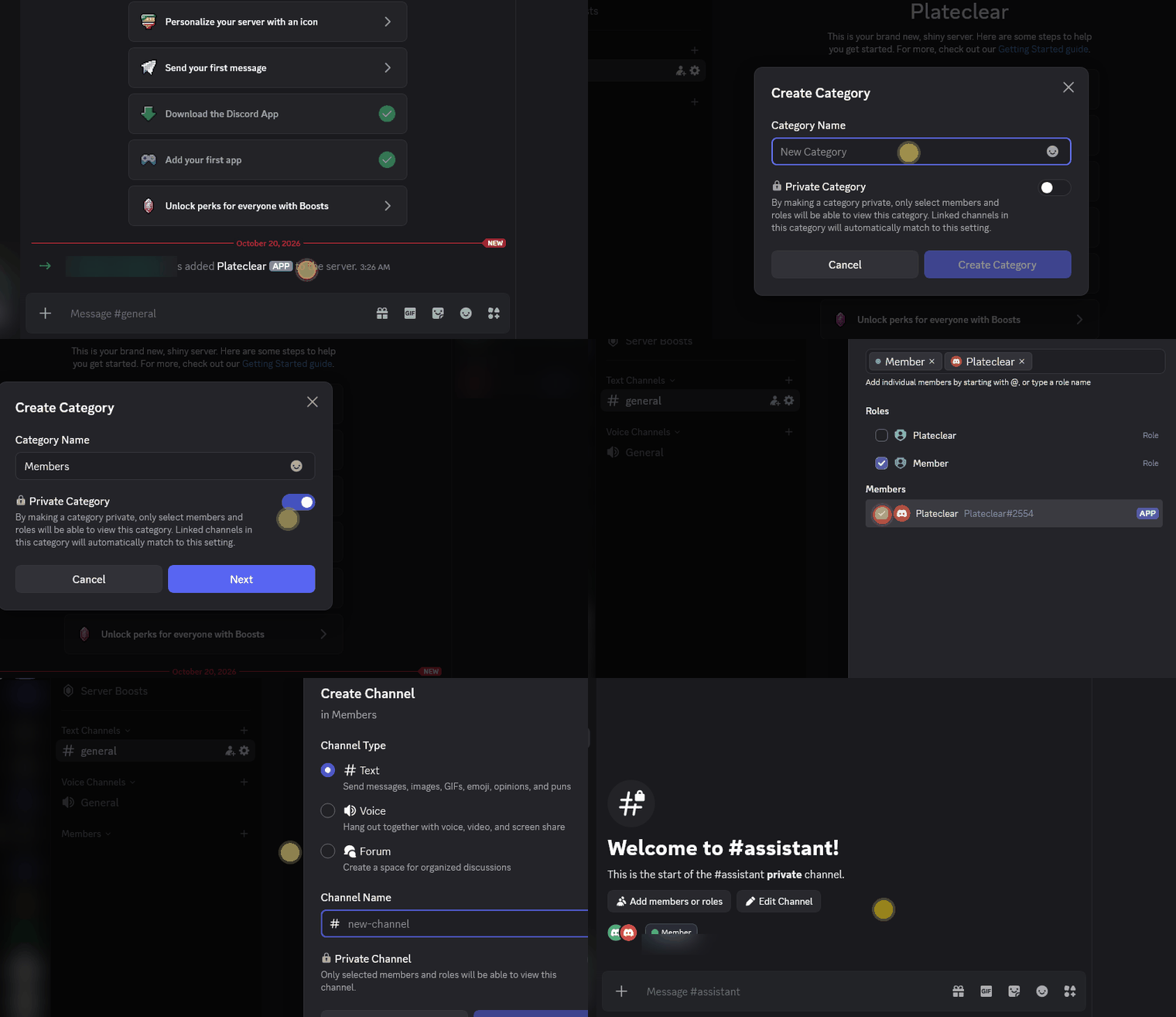
#assistanthas a lock, and says "This is the start of the #assistant private channel."
Connect your AI assistant
Give the token to your assistant and set who may talk to it (your User ID from step 2).
- Members: follow Your own AI assistant on Discord. Its kit installs everything.
- Want steps 6 and 7 done for you? The server layout kit does them in one run.
The bot's dot turns green and it answers you in
#assistant.
Trouble?
- "Private application cannot have a default authorization link": set Installation → Install Link to None first (step 3).
- "Invalid token" / 401 / close code 4004: the token was reset or mistyped. Copy a fresh one (step 4).
- Bot sees empty messages: Message Content Intent is off (step 3).
- Close code 4014: the program wants an intent you didn't turn on. Turn on the one it names.
- 403 / "Missing Permissions" (50013): check the channel's permissions and that the bot's role is above
Member. - "Missing Access" (50001): add the bot to the private category (step 7).
- 429 Too Many Requests: the program is going too fast. Good ones wait and retry.
Recorded on 2026-10-20 against Discord's current menus. If a button moved, look for the bold words, or see Discord's developer docs.
Sources
- Discord Developer Portal, applications: https://discord.com/developers/applications (accessed 2026-10-19)
- Discord docs, getting started (bot token, install settings): https://docs.discord.com/developers/quick-start/getting-started (accessed 2026-10-19)
- Discord docs, permissions and role hierarchy: https://docs.discord.com/developers/topics/permissions (accessed 2026-10-19)
- Discord docs, gateway and privileged intents: https://docs.discord.com/developers/events/gateway (accessed 2026-10-19)
- Discord docs, error and close codes: https://docs.discord.com/developers/topics/opcodes-and-status-codes (accessed 2026-10-19)
- Discord docs, rate limits: https://docs.discord.com/developers/topics/rate-limits (accessed 2026-10-19)
- Discord support, finding user/server IDs: https://support.discord.com/hc/en-us/articles/206346498-Where-can-I-find-my-User-Server-Message-ID (accessed 2026-10-19)
- Claude Code channels: https://code.claude.com/docs/en/channels (accessed 2026-10-19)